

OpenClaw 是本地运行的个人 AI 助手,可与多种通讯平台集成实现远程操控。
安装 OpenClaw
在终端中运行以下命令安装(老用户同样可以用此命令更新):- macOS / Linux
- Windows
配置 MiniMax 模型
安装完成后会自动进入配置引导。若没有自动开始,运行:- OAuth 登录(推荐)
- API Key 手动配置
1
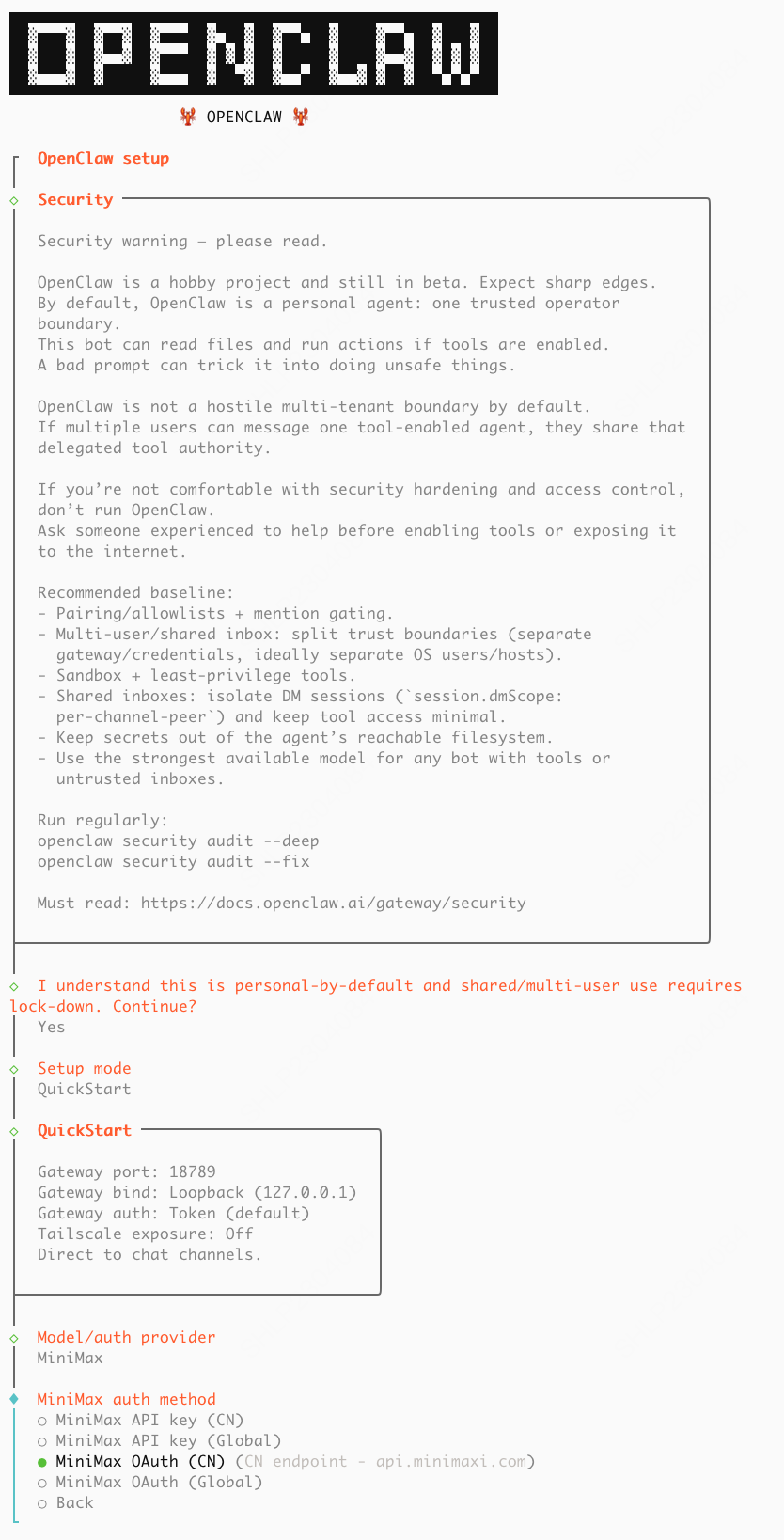
选择 Gateway 和模块
- Where will the Gateway run? → 选择 Local (this machine)
- Select sections to configure → 选择 Model
- Model/auth provider → 选择 MiniMax
- MiniMax auth method → 选择 MiniMax CN — OAuth (minimaxi.com)
2
登录授权
自动弹出登录页,登录并授权。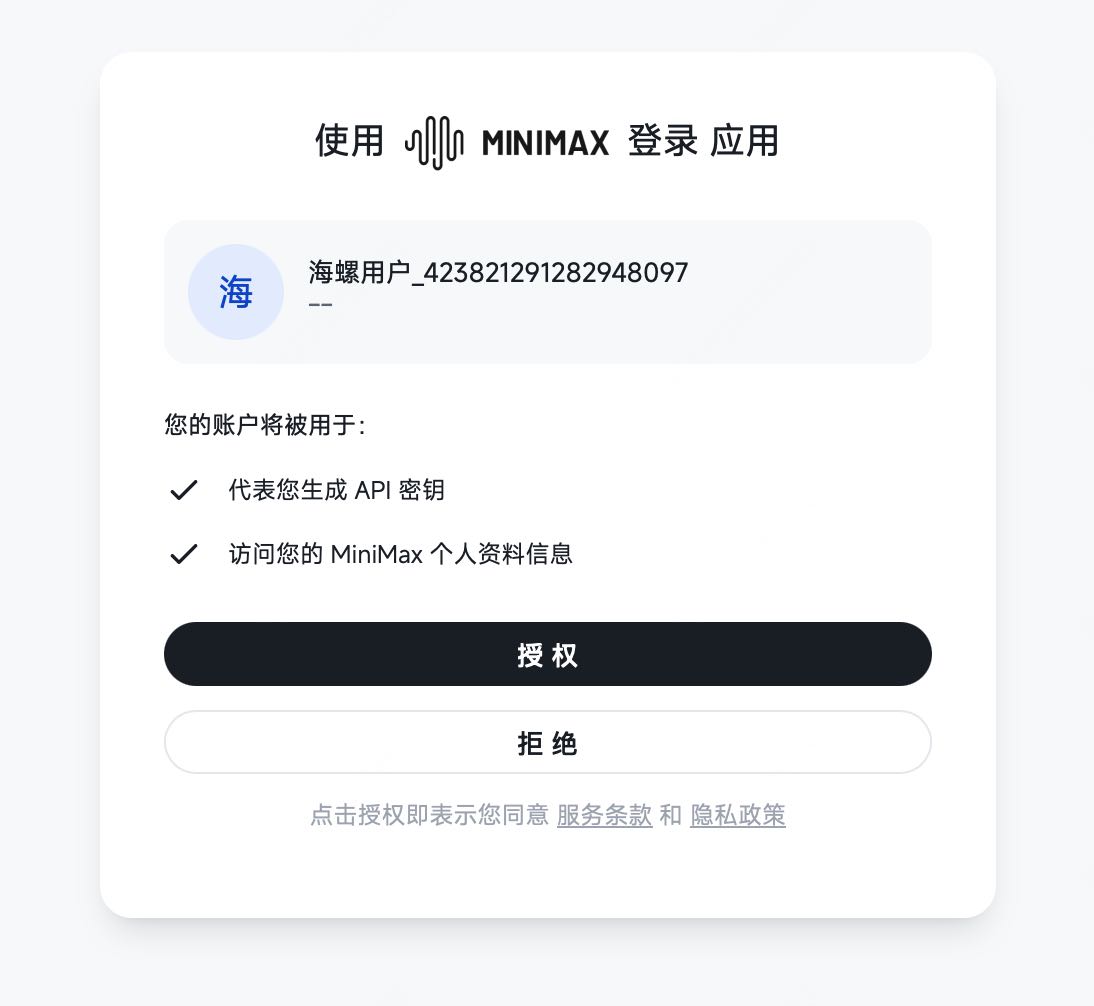
3
确认模型
系统默认勾选
MiniMax-M2.7 和 MiniMax-M3,并将 M3 设为默认,直接回车确认即可。4
验证
输入 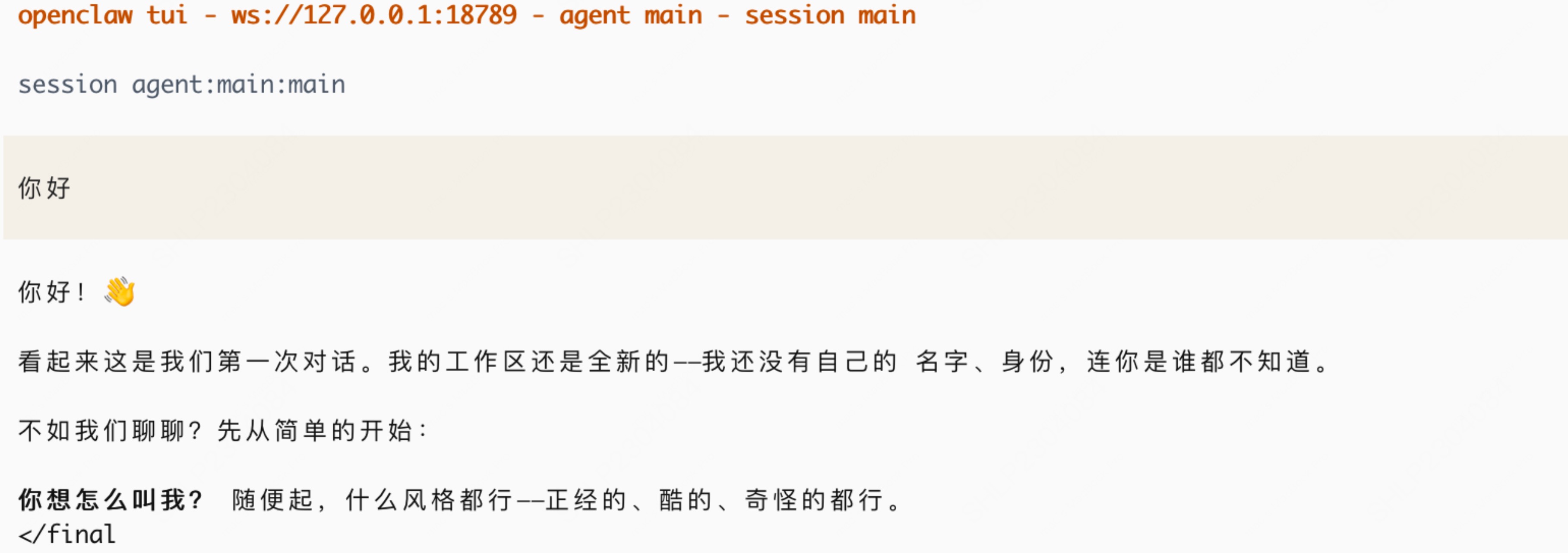
openclaw tui,能正常对话即配置成功。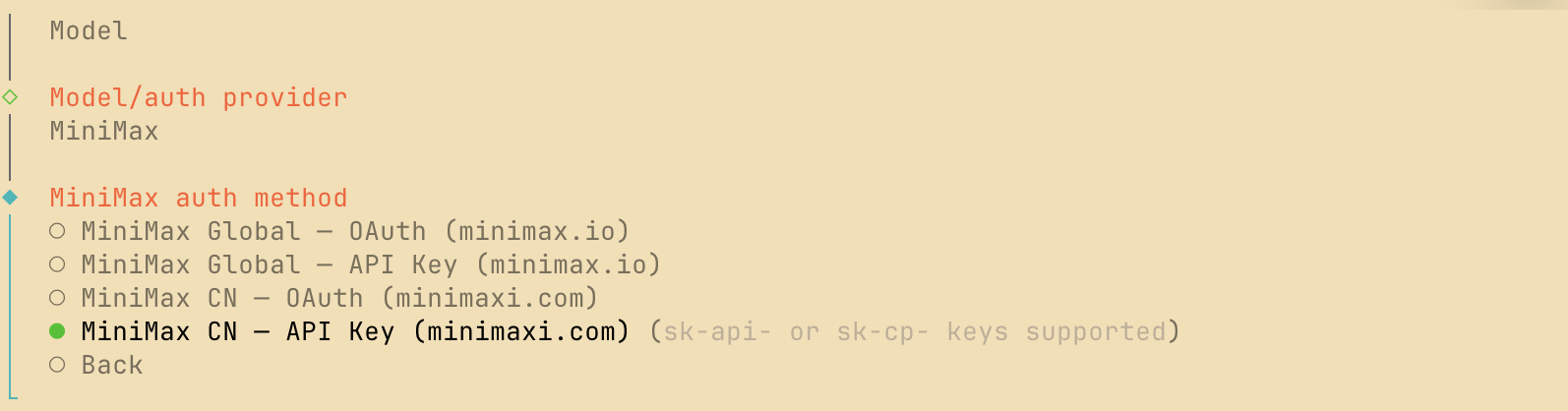

开关思考
运行时用/think 开关思考:off 关闭,adaptive(默认)让 M3 自行决定何时思考。
进阶能力配置方法
识图能力
- 方式 1(推荐):MiniMax CLI
- 方式 2:Token Plan MCP
MiniMax CLI(命令名
mmx)是官方多模态命令行工具,装好后可让 OpenClaw 通过 mmx vision 实现图像理解,同时复用文本/图像/视频/语音/音乐/搜索等 7 类多模态能力。1
环境准备
确保 Node.js 18+ 已就绪:
2
安装 MiniMax CLI
在终端运行以下命令完成全局安装:⭐️ 或让 OpenClaw 一次性完成安装、登录与 SKILL 接入,提示词(请将
sk-xxxxx 替换为你的实际密钥):3
登录 API Key
使用 API Key 完成鉴权(请将 最新版 mmx-cli 会根据 Key 自动检测服务区域,通常无需手动配置 region。登录完成后,可执行
sk-xxxxx 替换为你的 Key):服务区域根据所使用的 API 服务是在国内平台(
cn,MiniMax 国内版订阅)还是在海外平台(global,MiniMax 国际版订阅)上购买所决定。mmx quota 查看 Token Plan 套餐额度,确认整体配置生效。4
安装 SKILL(可选,推荐 Agent 用户)
若你要在 OpenClaw 中调用 mmx 命令,建议加装官方 SKILL.md,Agent 调用时决策更准、无需临时翻
--help:5
引导 OpenClaw 调用 mmx vision
告知 OpenClaw 后续识图需求优先走
mmx vision:6
验证
在 OpenClaw 中发送图片,检查 OpenClaw 是否会自动调用
mmx vision describe --image <路径> 并返回正确的图像描述。网络搜索
OpenClaw 默认不带网络搜索能力,可通过下列方式之一为 Agent 补上(适用于 Token Plan 订阅用户,API Key 以sk-cp 开头)。
- 方法 1(推荐):MiniMax CLI
- 方法 2:Token Plan MCP
mmx search 是 MiniMax CLI 提供的网络检索命令,无需额外 MCP server 进程,直接通过 Bash 调用即可。1
环境准备
确保 Node.js 18+ 已就绪:
2
安装 MiniMax CLI
在终端运行以下命令完成全局安装:⭐️ 或让 OpenClaw 一次性完成安装、登录与 SKILL 接入,提示词(请将
sk-xxxxx 替换为你的实际密钥):3
登录 API Key
使用 API Key 完成鉴权(请将 最新版 mmx-cli 会根据 Key 自动检测服务区域,通常无需手动配置 region。登录完成后,可执行
sk-xxxxx 替换为你的 Key):服务区域根据所使用的 API 服务是在国内平台(
cn,MiniMax 国内版订阅)还是在海外平台(global,MiniMax 国际版订阅)上购买所决定。mmx quota 查看 Token Plan 套餐额度,确认整体配置生效。4
安装 SKILL(可选,推荐 Agent 用户)
若你要在 OpenClaw 中调用 mmx 命令,建议加装官方 SKILL.md,Agent 调用时决策更准、无需临时翻
--help:5
引导 OpenClaw 使用 mmx search
mmx search 提供两种调用形态:mmx search query --q "..." --output json,把 stdout 的 JSON 直接交给模型解析,无需额外的 MCP server 进程。6
记忆存储